R/4 (Posted on 12/08/2021) Chapter 4 Conditional statement and looping in QBasic TOPICS TO BE COVERED: 1. CLS Command 2. Input Command 3. Print Command 4. If Statement 5. Loop Structure Main teaching: Quick
Beginners, All-Purpose Symbolic Instruction Code is
a high-level programming language developed by Microsoft
Corporation, the USA in 1985. It is modular programming, where
programming is divided into different modules or procedures. QBASIC Statements and Its Purpose CLS is used to Clear the display screen. Rem is used to writing remarks or explanation of the program. Syntax: Rem Remark Input is used to supply or input data from the keyboard. Syntax: Input"prompt message";variable list where prompt message tells the user what type of data is to be entered. Let is used to assign the value of an expression to a variable. It is an optional statement. Syntax: Let Variable=Expression eg. Let A = S Let Name$ = 'Binod' Print is used to display output on the screen in the desired alignment with some spacing in limited ways. It displays data, the value of variable or expression on the screen. Syntax: Print (Expression) Separator (Expression) eg. Print "My Name"; ABC Print "My Phone No"; XXXXXXXX Print (3^2+5)/2 End is used to terminate the Q Basic Program. A statement is an instruction within a program. The four types of statements are;
The command is the instructions to the computer to do something to a program as printing, saving etc. Character Set is a set of characters which are valid in Q Basic. It consists of alphabet (A-Z, a-z) number ( 0-9) and special characters like: !,@,#,$,%,%,^,&,*,(,),?,>,<,+,=,',",. Keywords are special words which have special purpose and meaning in Q Basic. Some of the keywords are CLS, REM, PRINT. AND, OR, LEN, WHILE etc. Selection StructureIt is also known as a branching structure that allows you to transfer the program control from one part to another on the basis of a specified condition or without condition. Types of Selection Structure:
If StatementThis is a decision-making statement that decides which statement has to be executed on the basis of the specified condition. CLS INPUT A INPUT B LET S = A + B PRINT " SUM OF NUMBER"; S END 1. If…..Then StatementIt is a one-way decision-making statement that evaluates a condition and executes the statement if the result of the condition is true. Syntax, If < Condition > Then Statement 1 End If If…..Then…Else StatementIt is the two-way decision-making statement that can decide which part of the computer it has executed when the condition is true or false. It executes one part of a program if the condition is true and another part if the condition is not true or false. Syntax: If < Condition > Then Statement 1 Else Statement 2 End if Write a program to check whether the number is divisible by 4 and 5CLS INPUT" ENTER THE NUMBER" ; N IF N MOD 4 = 0 AND N MOD 6 = 0 THEN PRINT" NUMBER IS DIVISIBLE IS DIVISIBLE BY 4 AND 6" ELSE PRINT" NUMBER IS NOT DIVISIBLE BY 4 AND 6" END IF END Mod=(divisible sign) If…..Then…Else If……ElseIt is a multi-way decision-making statement that is used when there are two or more conditions to be evaluated. Syntax If < Condition 1 > Then Statement 1 Else If < Condition 2 > Then Statement 2 ----------------------- -------------------- Else Statement- N End If ( N= Any Number) Loop StructureFor……..Next StatementIt repeats a block of statement for a specified number of times. 1,2,3,4…..10 CLS FOR K = 1 TO 10 PRINT K ; NEXT K END While…..Wend StatementIt executes a block of statements repeatedly until the specified condition is true. 1,4,7,10…….25 CLS A = 1 WHILE A < = 25 PRINT A A = A +3 WEND END Do…Loop StatementIt repeats a part of the program while a condition is true or until the condition becomes true. 100,90,80……up to 10 CLS S = 100 DO PRINT A; A = A -10 LOOP WHILE A > = 10 END Nested LoopThe Loop inside the loop structure is called Nested loop. It contains an outer loop and inner loop. 7 7 7 7 7 7 7 7 6 6 6 6 6 6 6 5 5 5 5 5 5 4 4 4 4 4 3 3 3 2 2 1 CLS FOR A = 7 TO 1 STEP -1 FOR B = 1 TO A PRINT A; NEXT B PRINT NEXT A END Watch the video
Assignment: A. Tick the correct
answer. |
|||||||||||||||||||||||||||||||||||||||||||||||||||||||||||||||||||||||||||||||||||||||||||||||||||||||||||||||||||||||||||||||||||||||||||||||||||||||||||||||||||||||||
|
1. The statement used to jump to a particular section in the
program is |
|||||||||||||||||||||||||||||||||||||||||||||||||||||||||||||||||||||||||||||||||||||||||||||||||||||||||||||||||||||||||||||||||||||||||||||||||||||||||||||||||||||||||
|
a) MOVE |
b) RUN |
c) GOTO |
|||||||||||||||||||||||||||||||||||||||||||||||||||||||||||||||||||||||||||||||||||||||||||||||||||||||||||||||||||||||||||||||||||||||||||||||||||||||||||||||||||||||
|
2. A loop within another loop is called a |
|||||||||||||||||||||||||||||||||||||||||||||||||||||||||||||||||||||||||||||||||||||||||||||||||||||||||||||||||||||||||||||||||||||||||||||||||||||||||||||||||||||||||
|
a) Circular loop |
b) Nested loop |
c) Branched loop |
|||||||||||||||||||||||||||||||||||||||||||||||||||||||||||||||||||||||||||||||||||||||||||||||||||||||||||||||||||||||||||||||||||||||||||||||||||||||||||||||||||||||
|
3. The loop used when the user knows exactly how many times the
loop has to be repeated is |
|||||||||||||||||||||||||||||||||||||||||||||||||||||||||||||||||||||||||||||||||||||||||||||||||||||||||||||||||||||||||||||||||||||||||||||||||||||||||||||||||||||||||
|
a) FOR…NEXT |
b) DO WHILE…LOOP |
c) WHILE…WEND |
|||||||||||||||||||||||||||||||||||||||||||||||||||||||||||||||||||||||||||||||||||||||||||||||||||||||||||||||||||||||||||||||||||||||||||||||||||||||||||||||||||||||
|
4. The counter variable increases or decreases by the specified |
|||||||||||||||||||||||||||||||||||||||||||||||||||||||||||||||||||||||||||||||||||||||||||||||||||||||||||||||||||||||||||||||||||||||||||||||||||||||||||||||||||||||||
|
a) Step value |
b) End value |
c) Start value |
|||||||||||||||||||||||||||||||||||||||||||||||||||||||||||||||||||||||||||||||||||||||||||||||||||||||||||||||||||||||||||||||||||||||||||||||||||||||||||||||||||||||
|
5. This loop is functionally equivalent to DO WHILE…LOOP. |
|||||||||||||||||||||||||||||||||||||||||||||||||||||||||||||||||||||||||||||||||||||||||||||||||||||||||||||||||||||||||||||||||||||||||||||||||||||||||||||||||||||||||
|
a) FOR…NEXT |
b) DO…LOOP WHILE |
c) WHILE…WEND |
|||||||||||||||||||||||||||||||||||||||||||||||||||||||||||||||||||||||||||||||||||||||||||||||||||||||||||||||||||||||||||||||||||||||||||||||||||||||||||||||||||||||
|
B. Fill in the
blanks. |
|||||||||||||||||||||||||||||||||||||||||||||||||||||||||||||||||||||||||||||||||||||||||||||||||||||||||||||||||||||||||||||||||||||||||||||||||||||||||||||||||||||||||
|
1. In a ___________, if the test condition is initially false,
the loop body is not executed at all. |
|||||||||||||||||||||||||||||||||||||||||||||||||||||||||||||||||||||||||||||||||||||||||||||||||||||||||||||||||||||||||||||||||||||||||||||||||||||||||||||||||||||||||
|
2. In the ___________, the loop body is executed first before
checking the condition. |
|||||||||||||||||||||||||||||||||||||||||||||||||||||||||||||||||||||||||||||||||||||||||||||||||||||||||||||||||||||||||||||||||||||||||||||||||||||||||||||||||||||||||
|
3. The minimum number of times a DO…WHILE executes is
____________. |
|||||||||||||||||||||||||||||||||||||||||||||||||||||||||||||||||||||||||||||||||||||||||||||||||||||||||||||||||||||||||||||||||||||||||||||||||||||||||||||||||||||||||
|
4. The ___________ section states the steps to be followed if
the condition is false. |
|||||||||||||||||||||||||||||||||||||||||||||||||||||||||||||||||||||||||||||||||||||||||||||||||||||||||||||||||||||||||||||||||||||||||||||||||||||||||||||||||||||||||
|
5. Final value is the number that controls the end of the
________ process. |
|||||||||||||||||||||||||||||||||||||||||||||||||||||||||||||||||||||||||||||||||||||||||||||||||||||||||||||||||||||||||||||||||||||||||||||||||||||||||||||||||||||||||
|
C. Spot the error in
these statements. Write each one correctly. |
|||||||||||||||||||||||||||||||||||||||||||||||||||||||||||||||||||||||||||||||||||||||||||||||||||||||||||||||||||||||||||||||||||||||||||||||||||||||||||||||||||||||||
|
1. A FOR loop can be terminated with the END FOR statement. |
|||||||||||||||||||||||||||||||||||||||||||||||||||||||||||||||||||||||||||||||||||||||||||||||||||||||||||||||||||||||||||||||||||||||||||||||||||||||||||||||||||||||||
|
2. DO WHILE…LOOP checks the condition at the bottom of the loop. |
|||||||||||||||||||||||||||||||||||||||||||||||||||||||||||||||||||||||||||||||||||||||||||||||||||||||||||||||||||||||||||||||||||||||||||||||||||||||||||||||||||||||||
|
3. In a nested statement, the inner statement ends after the
outer statement. |
|||||||||||||||||||||||||||||||||||||||||||||||||||||||||||||||||||||||||||||||||||||||||||||||||||||||||||||||||||||||||||||||||||||||||||||||||||||||||||||||||||||||||
|
4. The default increment value of a counter is equal to 0 in a
FOR…NEXT loop. |
|||||||||||||||||||||||||||||||||||||||||||||||||||||||||||||||||||||||||||||||||||||||||||||||||||||||||||||||||||||||||||||||||||||||||||||||||||||||||||||||||||||||||
|
5. DO…LOOP WHILE is an entry controlled loop. |
|||||||||||||||||||||||||||||||||||||||||||||||||||||||||||||||||||||||||||||||||||||||||||||||||||||||||||||||||||||||||||||||||||||||||||||||||||||||||||||||||||||||||
|
6. IF…THEN…ELSE is also known as a conditional loop. |
|||||||||||||||||||||||||||||||||||||||||||||||||||||||||||||||||||||||||||||||||||||||||||||||||||||||||||||||||||||||||||||||||||||||||||||||||||||||||||||||||||||||||

Main teaching:
For a quick sort, click the arrow below the Sort & Filtering icon in the Editing group of the Home ribbon and choose the Sort A to Z / Z to A icons in the Sort & Filter group of the Data ribbon. In Excel 2013, these are labeled Sort Smallest to Largest and vice versa.


1. Under Column, choose the first column that you would like to sort. If you want to sort multiple columns, click the Add Level button.
2. Under Sort On, choose how you would like to sort. Note that Excel can sort by cell or font color in addition to values.
3. Under Order, choose A to Z (ascending), Z to A (descending), or Custom List.
4. Click OK to perform the sort.
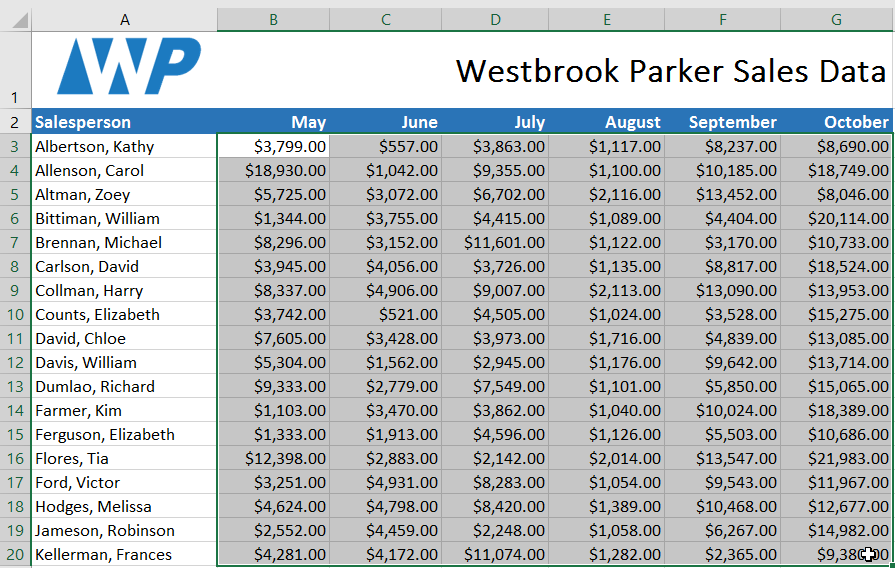
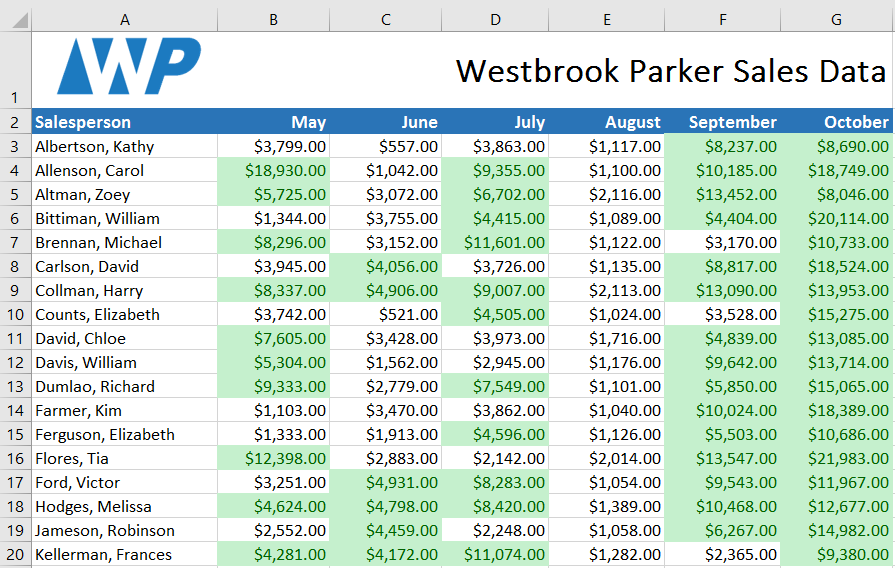
In our example, we have a worksheet containing sales data, and we'd like to see which salespeople are meeting their monthly sales goals. The sales goal is $4000 per month, so we'll create a conditional formatting rule for any cells containing a value higher than 4000.
- Select the desired cells for the conditional formatting rule.
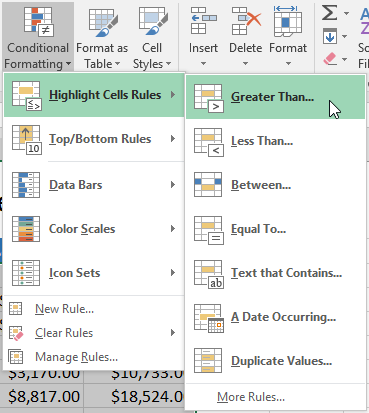
- From the Home tab, click the Conditional Formatting command. A drop-down menu will appear. However the mouse over the desired conditional formatting type, then select the desired rule from the menu that appears. In our example, we want to highlight cells that are greater than $4000.
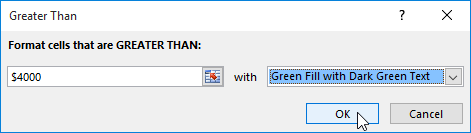
- A dialog box will appear. Enter the desired value(s) into the blank field. In our example, we'll enter 4000 as our value. Select a formatting style from the drop-down menu. In our example, we'll choose Green Fill with Dark Green Text, then click OK.
- The conditional formatting will be applied to the selected cells. In our example, it's easy to see which salespeople reached the $4000 sales goal for each month.
A chart is a powerful tool that allows you to visually display data in a variety of different chart formats such as Bar, Column, Pie, Line, Area, Doughnut, Scatter, Surface, or Radar charts. With Excel, it is easy to create a chart.
Here are some of the types of charts that you can create in Excel.
The Column Chart
The Column Chart effectively compares a single set of data points, but it shines when comparing multiple series. Outlined in red, the image below shows the three data series we're charting. Notice that we do not include the totals in our data series.
Because Excel uses a different color for each data series, it's easy to see how a single series changes over time, or compare multiple series over a given time period. The Clustered Column Chart is especially popular.
The Bar Chart is like a Column Chart lying on its side. The horizontal axis of a Bar Chart contains the numeric values. The first chart below is the Bar Chart for our single series, Flowers.
When to use a Bar Chart versus a Column Chart depends on the type of data and user preference. Sometimes it is worth the time to create both charts and compare the results. However, Bar Charts do tend to display and compare a large number of series better than the other chart types.
The Pie Chart
A Pie Chart displays one series of data. A data series is a row or column of numbers used for charting. In the worksheet below, we have outlined a single data series. If we had selected multiple series for the Pie Chart, Excel would ignore all but the first.
Excel uses the row heading (series identifier) for the chart title and displays the data as proportional slices of a pie (1st image below). One can customize the design of the pie chart so either numeric values or their percentages display on top of the slices of pie.
The legend can be moved to the top, bottom, left, right, or top right ("corner" in older versions) of the chart. Legend names can be changed by changing the column headings in the sheet or editing the chart directly in new Excel versions.
1. To print your worksheet, which option under the File tab would you choose? | ||
a) Print | b) Preview | c) Recent |
2. Which of these is a type of charts available in Excel? | ||
a) Perimeter | b) Volume | c) Area |
3. Which option under the Sort & Filter group of the Data tab removes all filters from the list? | ||
a) Remove | b) Filter | c) Delete Filter |
4. As soon as you insert a chart, how many new tabs appear on the Office ribbon? | ||
a) Two | b) Three | c) Four |
5. Which of these arranges the data in a list in a particular order? | ||
a) Sorting | b) Formatting | c) Filtering |
6. Which of these chart types is used when a comparison among individual items is to be shown? | ||
a) Column | b) Line | c) Bar |
B. Fill in the blanks. | ||
1. To prepare a filtered list at a new place, choose the ________ option in the Advanced Filter dialog box. | ||
2. Excel can sort data in other fields using the __________ option of the Sort dialog box. | ||
3. ________ make the comparison of data easy at different points. | ||
4. Excel first sorts __________, then __________, followed by blank cells. | ||
5. The Auto Filter option lists down the filtering options ____________. | ||
6. When scientific data or share market statistics is to be plotted, _________ chart type is used. | ||
7. Click _________ to set the number of printouts of the worksheet you need. | ||
C. Which feature of Excel should be used to do the following? | ||
1. To present data in a pictorial form | ||
2. To compare large sets of data | ||
3. To find the bottom 10 items of a list | ||
4. To get particular information from a list without changing the order of the list | ||
5. To arrange the data of a column in descending order | ||
D. Match the following. | ||
1) Filter | | a) arrange |
2) Auto Filter | | b) separate |
3) Sort | | c) one criterion |
4) Advanced | | d) more criteria |
F. Which tab should be clicked to do the following? | ||
1. To print a worksheet | ||
2. To change a chart type | ||
3. To get the Advanced Filter option | ||
4. To create a chart for given data | ||
5. To sort a given column | ||
6. To perform conditional formatting on data | ||
G. Under which tab are the following options found? | ||
1. Conditional formatting | ||
2. Charts | ||
3. Chart title | ||
4. Chart styles | ||
- A Formula is an expression that calculates values in a cell or in a range of cells.For example
=A2+A2+A3+A4is a formula that adds up the values in cells A2 through A4. - Function is a predefined formula already available in Excel. Functions perform specific calculations in a particular order based on the specified values, called arguments, or parameters.
=SUM(A2:A4)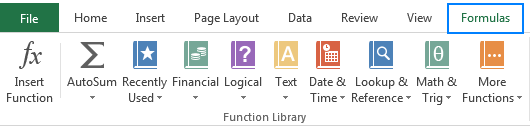

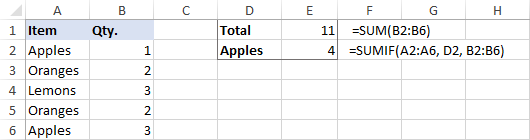
The first Excel function you should be familiar with is the one that performs the basic arithmetic operation of addition:
=SUM(B2:B6) adds up values in cells B2 through B6.=SUM(B2, B6) adds up values in cells B2 and B6.=SUM(B2:B6)/5=SUMIF(A2:A6, D2, B2:B6)In your Excel worksheets, the formulas may look something similar to this:
AVERAGE
=SUM(B2:B6)/5), what does it actually do? Sums values in cells B2 through B6, and then divides the result by 5. And what do you call adding up a group of numbers and then dividing the sum by the count of those numbers? Yep, an average!=AVERAGE(B2:B6)=AVERAGEIF(A2:A6, D3, B2:B6)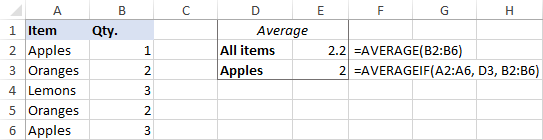
MAX & MIN
=MAX(B2:B6)=MIN(B2:B6)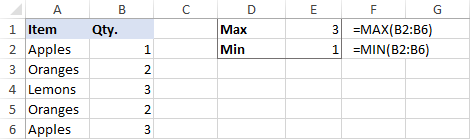
COUNT & COUNTA
=COUNT(B1:B10)=COUNTA(B1:B10)A. Choose the correct option from the options given below. | ||
1. Which of the following is used to select a range of data automatically? | ||
a) property | b) cell address | c) function |
2. Which function is used to find how many cells contain numbers and not text? | ||
a) TEXT | b) NUMBER | c) COUNT |
3. Which function is used to find the highest number in a set of numbers or series of cells? | ||
a) MAX | b) MIN | c) HIGH |
4. Which pre-defined feature is known as functions in Excel? | ||
a) property | b) formula | c) data |
5. Excel saves the formula using cell address and not this. | ||
a) cell column | b) cell contents | c) cell rows |
1. Functions | a) two function arguments | |
2. AutoSum | b) formulas | |
3. Quotient | c) shortcut in the Formula tab | |
4. Mixed cell address | d) spreadsheet | |
5. Relative cell address | e) HR$02 | |
6. Excel | f) $K$23 | |
7. Absolute cell address | g) CD13 |
Points to Remember
- The two main components of a computer are hardware and software.
- Hardware consists of all the physical parts that make up a computer system.
- Software is the name given to the instructions and programs that make the hardware work.
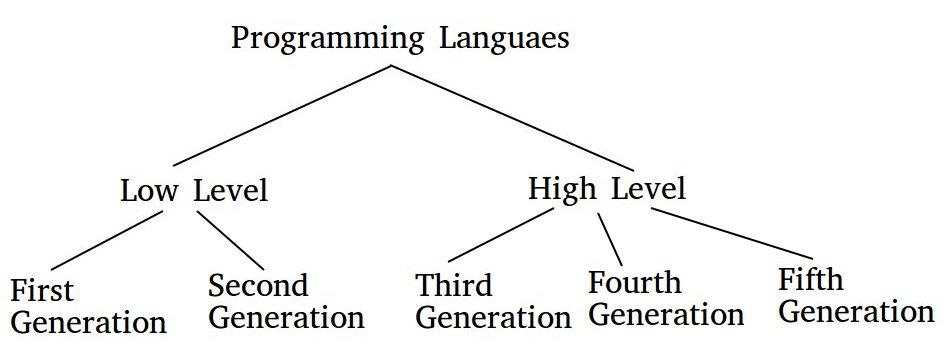
- The different stages of the advancement in software technology which is directly linked to development in computer programming languages is called generation of computer languages.
- A computer understands only binary language which is in the form of 0s (zeros) and 1s(ones) only as it is a machine that understands only two situations, OFF and ON in which 0 is OFF and 1 is ON.
- Machine language is also known as first generation language.
- Machine language is the only language which the computer understands.
- Assembly language is known as second generation language.
- Machine language and assembly languages are Low Level Language.
- High Level Language is the third generation language.
- High Level Languages use commands and code which is in common English.
- The first high level language was designed in the 1950s.
- Some examples of High Level Languages are C, C++, C#, JAVA, FORTRAN, BASIC and COBOL.
- Fourth generation languages are used mainly in database programming. For example – PL/SQL, FoxPro, Stata, Oracle and Visual Basic.
- A fifth-generation programming language (5GL) is a programming language based on problem-solving using constraints given to the program, rather than using an algorithm written by a programmer. This is also known as artificial intelligence language.
- Based on their use, software is classified into two types Application software and System software.
- System software refers to software that is developed to operate and control the computer hardware.
- An operating system is the software that controls and organizes the working of a computer. Windows 7, Windows 10, Linux, Android, Mac are all operating systems. It acts as an interface between the user and the hardware.
- A device driver is software which enables hardware devices to communicate with the computer's operating system.
- Utility programs are software designed to perform a specific task related to the operation of a computer. Disk Defragmenter and System Restore are utility programs.
- An assembler is a language processor that translates the programs written in assembly language into machine language.
- An Interpreter is a language processor that translates high level language into the machine language line by line.
- A compiler is a language processor that translates the entire high level language program into machine language at once.
- Application software is used to perform specialized tasks given by the user and is also referred to as end user programs.
- Word processors are used to create, edit and format text documents. Microsoft Word, WordPerfect, Writer and Kword are all Word Processors.
- Desktop Publishing software (DTP) is used to create newspapers, magazines, brochures, still advertisements etc.
- Database Management System (DBMS) software is used to create, store, modify and sort data stored in a database such as Microsoft Access, Oracle, Microsoft SQL Server.
- A database is an organised collection of related data.
- Spreadsheets are used to calculate, compare and analyze data which is used to prepare different reports based on that data. Microsoft Excel, Lotus 1-2-3 are Spreadsheets.
- Presentation software is used to create presentations which include sound, music, videos, charts and animation like Microsoft PowerPoint, Corel Presentation and Impress.
- Customized software is also known as bespoke software. Some examples are the software used for railways, banks and hospitals which are tailored to their specific need.
- Number systems are the techniques used to represent numbers in the computer system architecture in which every value that you save or get from computer memory has a defined number system.
- Computer architecture supports four types of number systems, (i) Binary number system, (ii) Octal number system, (iii) Decimal number system and (iv) Hexadecimal (hex) number system
- The base of binary number system is 2, because it has only two digits.
- Octal number system has only eight (8) digits from 0 to 7. Every number value is represented by 0,1,2,3,4,5,6 and 7 in this number system.
- The base of octal number system is 8, because it has only 8 digits.
- Decimal number system has only ten (10) digits from 0 to 9. Every number value is represented by 0,1,2,3,4,5,6, 7, 8 and 9 in this number system.
- The base of decimal number system is 10, because it has only 10 digits.
- A Hexadecimal number system has sixteen (16) alphanumeric values from 0 to 9 and A to F. Every number value is represented by 0,1,2,3,4,5,6, 7, 8, 9, A, B, C, D, E and F in this number system.
- The base of hexadecimal number system is 16, because it has 16 alphanumeric values.
* 4GLs
* 5th generation languages
3. Computer software and its types
Main teaching:
- * Machine Level language
- * Assembly Level Language and
- * High Level Language
Machine Level Language
- Positive Logic – Here presence of voltage will be denoted by 1 and absence of voltage will be denoted by 0
- Negative Logic – Here presence of voltage will be denoted by 0 and absence of voltage will be denoted by 1
Assembly Level Language
High Level Language
- * PROLOG (for “Programming Logic”);
- * FORTRAN (for ‘Formula Translation’);
- * LISP (for “List Processing”);
- * Pascal (named after the French scientist Blaise Pascal).
These are languages that consist of statements that are similar to statements in the human language. These are used mainly in database programming and scripting. Example of these languages include Perl, Python, Ruby, SQL, MatLab(Matrix Laboratory).
Fifth Generation Languages :
These are the programming languages that have visual tools to develop a program. Examples of fifth generation language include Mercury, OPS5, and Prolog.
- * System Software
- * Application Software
System Software

- * Fast in speed
- * Difficult to design
- * Difficult to understand
- * Less interactive
- * Smaller in size
- * Difficult to manipulate
- * Generally written in low-level language
Application Software
- * Income Tax Software
- * Railways Reservation Software
- * Microsoft Office Suite Software
- * Microsoft Word
- * Microsoft Excel
- * Microsoft PowerPoint

- * Close to the user
- * Easy to design
- * More interactive
- * Speed is slow.
- * Generally written in high-level language
- * Easy to understand
- * Easy to manipulate and use
- * Bigger in size and requires large storage space
Number system
A computer can understand the positional number system where there are only a few symbols called digits and these symbols represent different values depending on the position they occupy in the number.
- * The digit
- * The position of the digit in the number
- * The base of the number system (where the base is defined as the total number of digits available in the number system)
Decimal Number System
1234 = (1 x 1000)+ (2 x 100)+ (3 x 10)+ (4 x l)
          = (1 x 10³)+ (2 x 10²)+ (3 x 101)+ (4 x l00)
          = 1000 + 200 + 30 + 4
| S.No. | Number System and Description |
|---|---|
| 1 | Binary Number System Base 2. Digits used : 0, 1 |
| 2 | Octal Number System Base 8. Digits used : 0 to 7 |
| 3 | Hexa Decimal Number System Base 16. Digits used: 0 to 9, Letters used : A- F |
Binary Number System
- Uses only two digits, 0 and 1
- Also called the base 2 number system
- Each position in a binary number represents a 0 power of the base (2). Example 20
- Last position in a binary number represents a x power of the base (2). Example 2x where x represents the last position - 1.
Example
| Step | Binary Number | Decimal Number |
|---|---|---|
| Step 1 | (10101)2 | ((1 x 24) + (0 x 23) + (1 x 22) + (0 x 21) + (1 x 20))10 |
| Step 2 | (10101)2 | (16 + 0 + 4 + 0 + 1)10 |
| Step 3 | (10101)2 | 2110 |
Watch video no. 3
Read chapter 1 and do the following exercises.
1. Microsoft Word is a type of _______. | ||
a) application software | b) system software | c) plug-in software |
2. A computer understands only__________. | ||
a) binary numbers | b) decimal numbers | c) letters |
3. Which language is closer to human languages? | ||
a) High level languages | b) Low level languages | c) 4GL |
4. Which of the following is a spreadsheet program? | ||
a) Lotus 1-2-3 | b) Impress | c) Oracle |
5. The binary system uses only _______. | ||
a) 3 single digits | b) 10 single digits | c) 2 single digits |
B. Fill in the blanks. | ||
1. ________ is an example of systems running with artificial intelligence. | ||
2. _______ is used to help in designing of a product. | ||
3. _______ software is the same for all the users who are operating on that software | ||
4. _______ programs are necessary for the smooth operation of the computer system. | ||
5. System software is developed to ________ and ________ the computer. | ||
6. The DBMS is used to _______ the database and find _______ easily. | ||
1) System Restore | a) General purpose software | |
2) CAD | b) System software | |
3) Adobe Photoshop | c) Operating system | |
4) Railway booking | d) DTP software | |
5) Mac | e) Customized software |
E. Expand the following abbreviations. | ||
1. LLL | 2. FORTRAN | 3. COBOL |
4. CAD | 5. BASIC | 6. DBMS |
F. Write two examples for each of the following. | ||
1. Language processors | 2. HLL | 3. Utility programs |
4. Operating system | 5. DTP software | 6. Spreadsheet software |